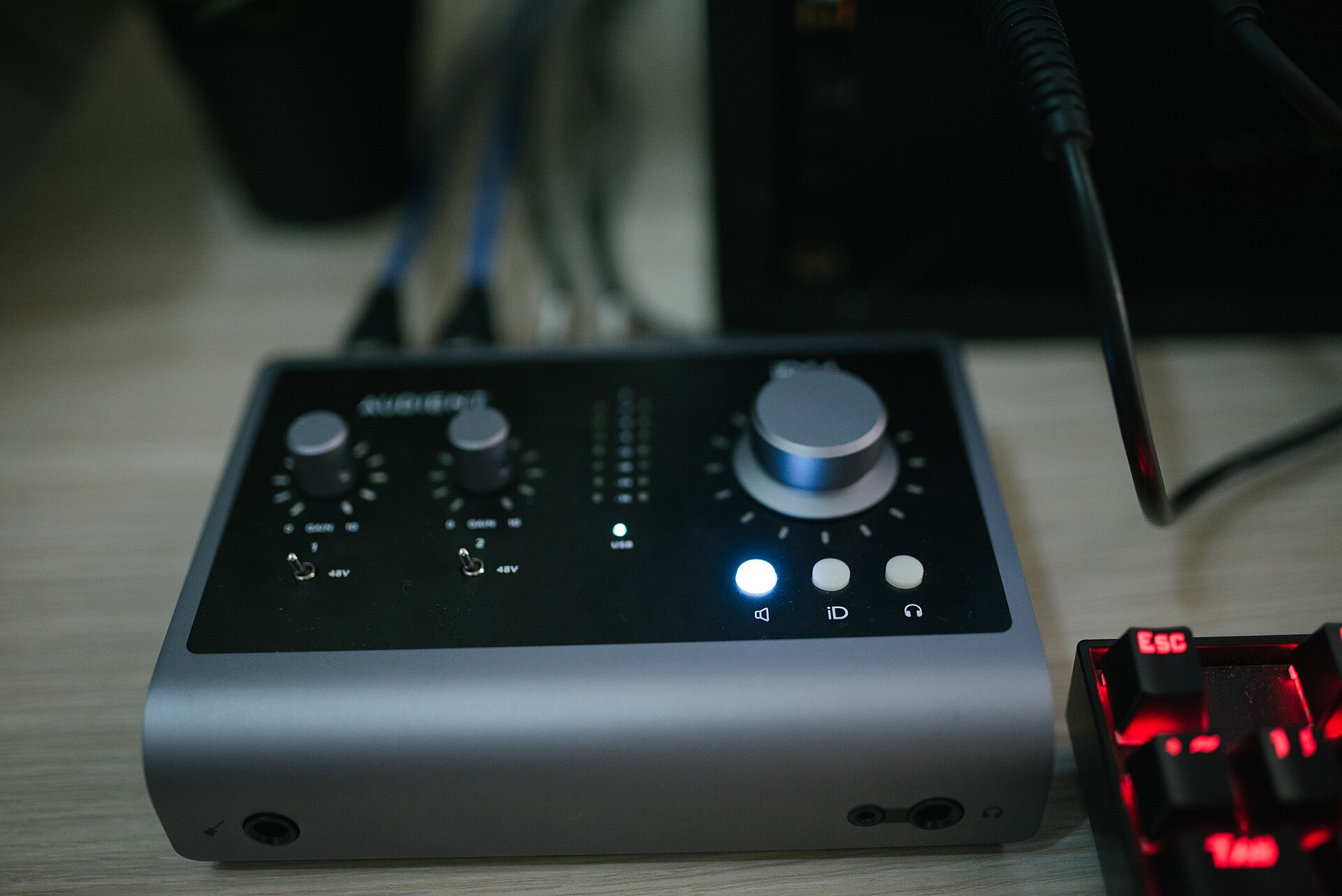
A home studio often contains two keyboards and one body trying to reach everything. The computer keyboard handles commands, the MIDI keyboard handles musical input, and the mouse handles detailed editing. Put all three in a fixed row and the device you use most may end up furthest away.
Studio ergonomics begins with the task you are doing now. Recording a keyboard part, editing a vocal and writing notes about a mix create different patterns of movement. A useful layout makes those patterns visible before you buy another piece of equipment.
Name the active task before arranging the desk
Choose one familiar task and describe its actual controls. Vocal editing may involve frequent mouse movement and a small set of shortcuts. Playing a MIDI part may involve both hands on musical keys, with occasional transport commands. Mixing may alternate between listening, automation and written decisions.
These are examples, not rules about how everyone should work. The point is to distinguish the device needed continuously from the device needed occasionally. A large item can dominate the desk while playing a surprisingly small role in the current task.
| Task | Frequently used controls | Occasionally used controls |
|---|---|---|
| Edit a spoken recording | Mouse and selected shortcuts | MIDI keyboard |
| Record a piano part | Musical keys and sustain pedal | Typing keys |
| Review an arrangement | Transport and listening controls | Detailed clip editing |
A table like this can reveal why a visually symmetrical setup feels inconvenient. The centre of the desk and the centre of your work are not always the same place.
Keep typing and mouse use within a comfortable arrangement
OSHA’s keyboard guidance recommends considering the keyboard together with the mouse and other workstation components. It discusses comfortable reach, relaxed shoulders and wrists aligned with the forearms. Equipment positioned too high, too low or too far away can encourage awkward working positions.
In a studio, the musical keyboard can create exactly that placement problem. A deep instrument directly in front of the monitor may push the typing keyboard and mouse beyond it. You then reach over one device to operate another for much of the editing session.
Before changing the whole room, test a task-specific arrangement using equipment you already have. Move a rarely used item aside and see whether the frequently used controls can occupy the more accessible space. Do not balance heavy equipment on an unstable surface or improvise a stand that cannot support it.
Notice the direction of repeated mouse travel
The Canadian Centre for Occupational Health and Safety explains mouse-related problems in terms of repeated small movements and the position required to reach the device. It recommends considering the computer, furniture and work practices together. A mouse placed beyond easy reach can add sustained demands on the shoulder and upper body.
Look at the movement you repeat most. Is the pointer device beside the typing keyboard, or beyond a control surface? Does a headphone cable pull across its path? Do you lift the mouse around another object repeatedly? These observations are more specific than deciding that the desk is simply “too small.”
The same reasoning applies to a trackpad, tablet or hardware encoder. Changing device type does not automatically solve a placement problem. The new device still needs to fit the task and the available space.
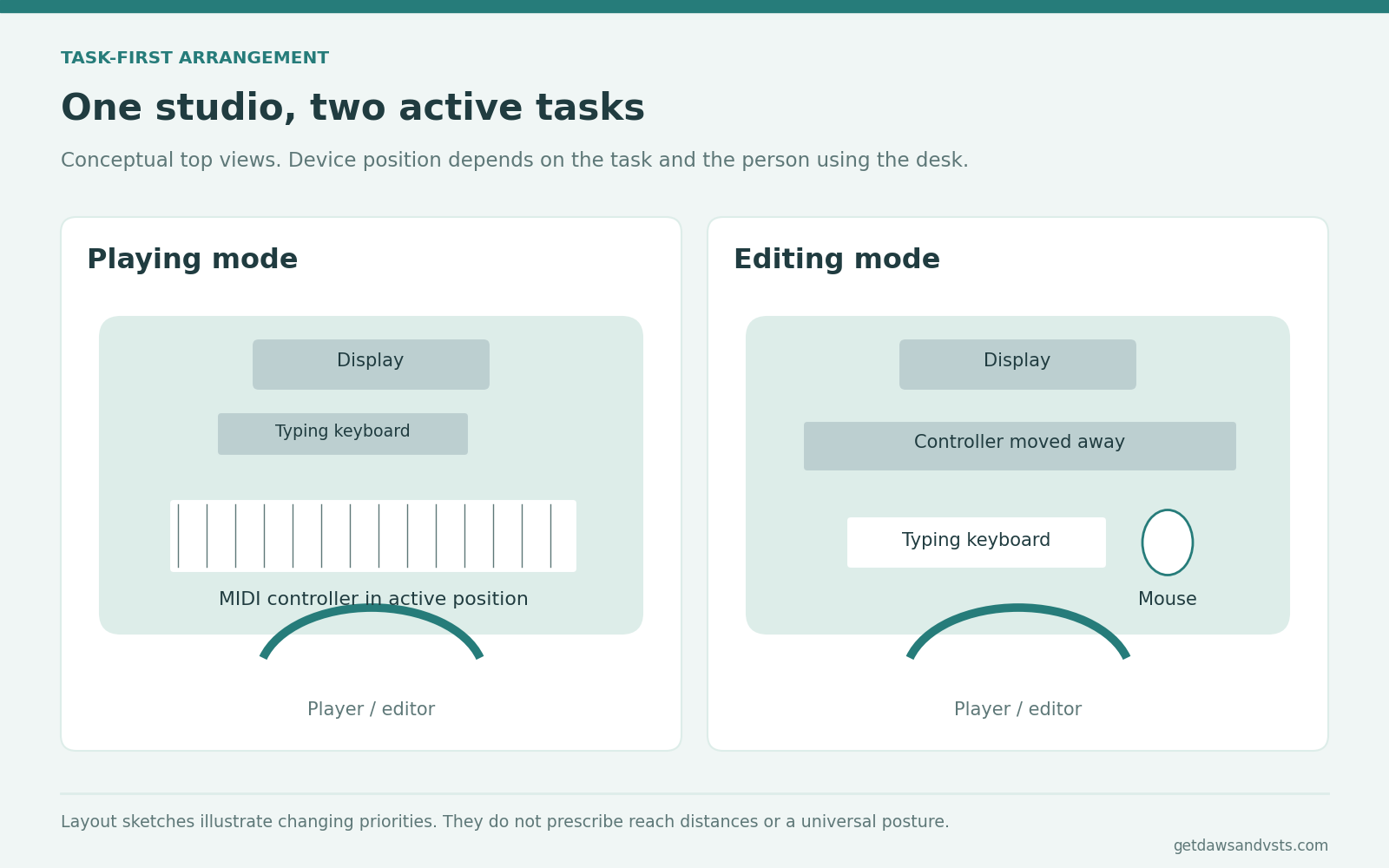
Separate playing mode from editing mode
A desk does not have to serve every activity in exactly the same configuration. Where the room and equipment allow it, distinguish a playing arrangement from an editing arrangement. The transition should be simple enough to happen in normal use.
For example, a fictional producer records a keyboard part with the instrument in the main working position. Before detailed editing, they move the typing controls into that position and put the instrument aside. The example does not prescribe a particular furniture design; it demonstrates a change in priority.
If moving equipment is impractical, consider whether the order of tasks can reduce repeated reaching between distant devices. Grouping a few similar operations may make the workflow clearer, provided it does not turn a necessary interruption into a reason to stay fixed in one position.
Check the screen you actually look at
A second monitor may hold meters, a mixer or reference material. Ask which screen receives most of your attention during each task. A main display centred over the desk does little for alignment if you spend the whole session looking at another display off to one side.
Window placement is part of the setup. Bring the controls and information needed for the current operation into a practical viewing arrangement. Repeatedly leaning forward to read small labels suggests a different problem from an inconvenient mouse position, so describe the two separately.
Keep a distinction between a readable interface and an attractive screenshot. Tiny windows may fit every plugin on one display while making the actual work harder to follow.
Use shortcuts to simplify a task, not to create a new strain
A shortcut can remove a repeated trip through a menu. It can also become an awkward hand position if it requires an uncomfortable reach or a complicated combination used continuously. Evaluate the action rather than assuming that keyboard control is always preferable.
Begin with the few commands you use most often. Write down the current action, the proposed alternative and whether you can remember it comfortably. A consistent, easy command is usually more useful than a long list of custom mappings that interrupts the work.
There is no need to attach a medical claim to a workflow improvement. Fewer unnecessary clicks can be worthwhile because the task becomes simpler, even without evidence of a particular health effect.
Make one change and keep the result practical
After trying an arrangement, describe what changed: easier reach, fewer obstructed movements, clearer screen information or a simpler transition between playing and editing. Do not interpret one comfortable session as proof that every risk has disappeared.
Persistent discomfort, numbness or loss of function needs an appropriate professional assessment. A desk plan can organise the equipment around a task, but it cannot determine the cause of a symptom.
The goal is a studio that supports the way work actually happens. Start with the task, give its most-used controls a sensible position and make changes of activity straightforward. That provides a practical foundation for examining the other human side of production: attention, listening and the biological signals involved in staying awake.